Client Updater
The Client Updater is used to retrieve updated software from the OneStream server for the Excel Add-In client program when the version being used does not match the version found on the server being connected. Note that in order to perform the update, the user needs to be able to write to the installation folder. From this page, the user can first save work and then restart using elevated Windows privileges using the Restart OneStream as Windows Administrator button.
Information regarding the current version is displayed at the top of the window, as well as the module being reviewed, the location of the installation folder and the version status all appear within this window.
Example of versions that match: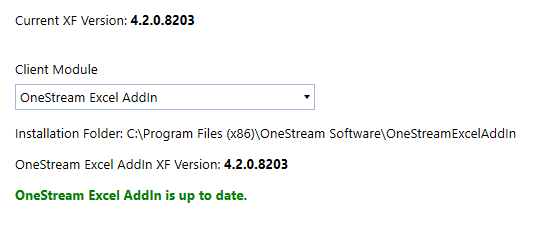
Example of versions that do not match:
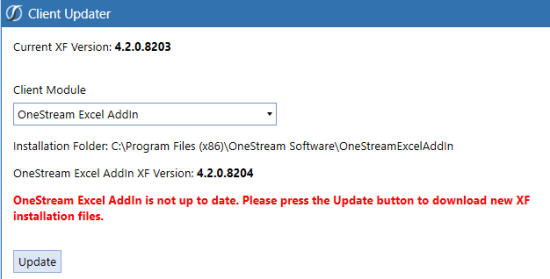
Client Module
This field is used to select which application (OneStream Excel Add-In) needs to be compared to the current version of each that are currently installed on the user’s desktop. Click the selection arrow and select the appropriate application.
If the versions do not match, click the Update button, then click OK.
NOTE: If any versions of Excel are open, they must be closed before clicking OK to proceed.
NOTE: A backup folder with files for the outdated version is automatically created and saved as part of the update process. It can be found in the same location as the newly updated version folder.
If this functionality has been disabled, the following message appears when trying to update those applications. “The Client Updater has been disabled by your System Administrator. Please use OneStream’s full client installation program, or see your System Administrator.”